

MagOneAI Studio
The builder interface for creating agents, workflows, and integrations
What is MagOneAI Studio?
MagOneAI Studio is MagOneAI's builder interface — a visual, code-optional environment where business teams and developers create, test, and deploy AI workflows.
If you're building AI automation, MagOneAI Studio is where you'll spend most of your time. It combines a drag-and-drop workflow canvas, agent configuration, tool integration, knowledge base management, and execution analytics in one unified interface.
Access to MagOneAI Studio requires the Org Member role or higher. End Users can only access MagOneAI Hub (the chat interface) and cannot build workflows.
Project structure
MagOneAI Studio is organized around projects — containers that group related resources for a specific business domain or team.
Projects as containers
Each project contains:
- Agents — AI entities with personas, models, and capabilities
- Use Cases — Workflow definitions (the visual graphs you build)
- Tools — External integrations connected via MCP
- Knowledge Bases — Document collections for RAG retrieval
Projects provide logical separation: a "Customer Onboarding" project might have agents for KYB verification, document processing, and risk assessment, while a "Sales Automation" project has agents for lead enrichment and proposal generation.
Project-level member management
Projects have independent access control:
- Admin — Full control over the project, including member management and settings
- Builder — Can create and edit resources within the project
- Operator — Can run workflows and chat, but not change configurations
- Viewer — Read-only access
- Inherited access — Org Owners automatically have access to all projects
You can add team members to specific projects without giving them access to the entire organization.
Project settings and configuration
Each project has its own configuration:
- Project name and description — Describe the project's purpose
- Default settings — Set default LLM models, timeout values, or retry policies
- Environment variables — Project-scoped variables (API endpoints, configuration values)
Workflow canvas
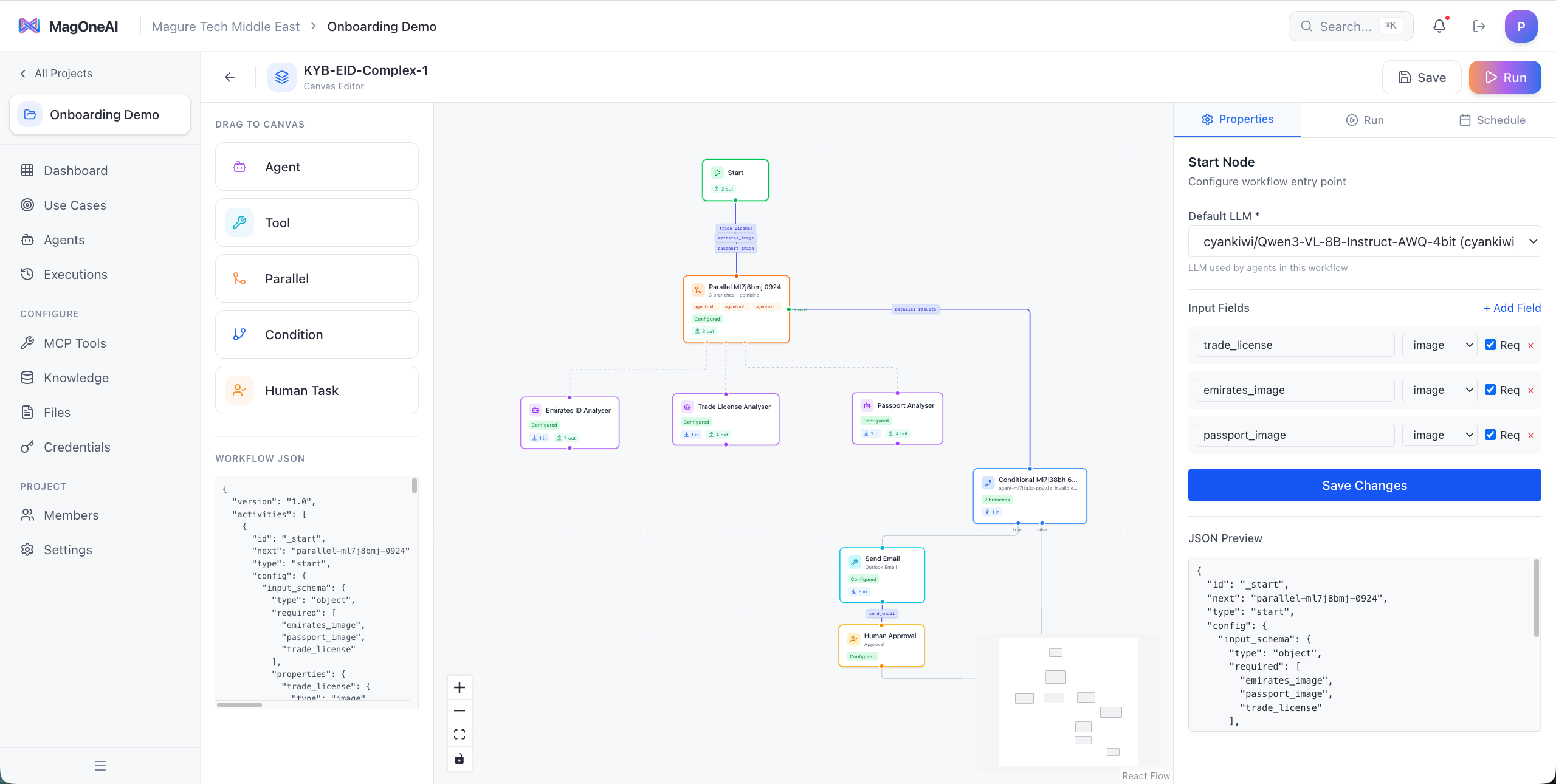
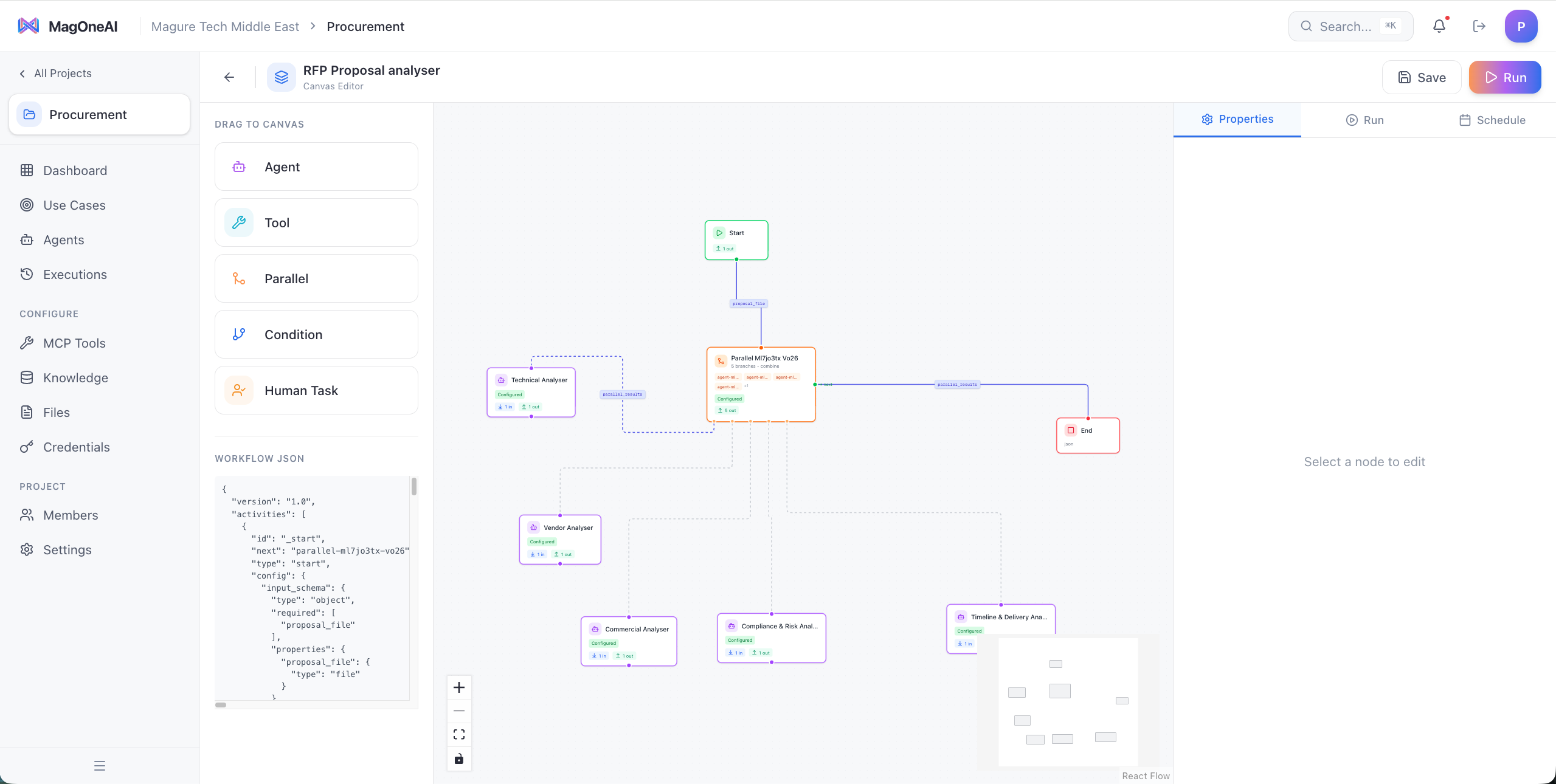
The workflow canvas is the heart of MagOneAI Studio. It's where you visually design AI workflows by dragging nodes, connecting them, and configuring their behavior.
Visual drag-and-drop builder
The canvas provides an intuitive interface for workflow design:
- Drag activities from the palette: add Agent, Tool, API, Parallel, Condition, Human Task, Sub Use Case, ForEach, Code, or Super Agent nodes
- Connect activities — Draw edges to define execution order and data flow
- Configure each node — Click a node to open its configuration panel
Available node types
MagOneAI Studio supports several activity types, each serving a different purpose:
An AI entity that reasons, uses tools, and produces output. Configure the agent's persona, model, instructions, available tools, and connected knowledge bases. This is the core building block for AI-powered workflows.
Direct execution of an external capability without AI reasoning. Use this when you need to call an MCP tool, query a database, or execute a function deterministically (without LLM overhead).
Call any external HTTP endpoint directly, without an MCP server. Configure the method, URL, query parameters, headers, body, and authentication, plus controls like following redirects, failing on error status codes, and a maximum response size. Use this to integrate a REST API that isn't wrapped as a tool.
Execute multiple branches simultaneously. Useful when you have independent tasks that can run at the same time (e.g., fetch data from three APIs in parallel). The workflow waits for all branches to complete before continuing.
Branch based on logic or AI evaluation. You can use simple conditions (e.g., "if score > 80") or have an AI agent evaluate the condition (e.g., "does this document contain financial information?").
Pause the workflow for human approval or input. The workflow creates a task in MagOneAI Hub, notifies the assigned user, and resumes once they respond. Essential for governance and human-in-the-loop workflows.
Embed another workflow as a reusable module. This allows you to create composable workflows: build a "Document Summarization" use case once, then call it from multiple parent workflows.
Iterate over a list and execute activities for each item. For example, if you have a list of customer names, you can use ForEach to process each customer through the same agent workflow.
Run your own Python in a secure, isolated sandbox. Use it for custom logic, data transformation between nodes, calculations, or generating output files. See the Code node guide.
An agent whose tools are the project's own published workflows. It decomposes a request, delegates to the right capabilities, and answers from their results. It is a single front door over everything the project already automates. A preview capability: it appears in the palette only when your deployment has it enabled. See the Super Agent node guide.
Canvas controls
The canvas provides several controls for navigation and editing:
- Zoom and pan — Ctrl/Cmd + mouse wheel to zoom, scroll or middle/right-drag to pan, and left-drag to marquee-select multiple nodes
- Minimap — A minimap helps you navigate large workflows
- Lock the canvas — Toggle interactivity off to review a workflow without accidentally moving or editing nodes
- Dot-grid background — A visual dot grid helps you align nodes by eye
- Splice onto an edge — Drag a node from the palette onto an existing connection to insert it inline between two nodes
Undo, redo, copy, and paste
The canvas keeps a full editing history so you can experiment freely:
- Undo / redo — Every structural change (adding, deleting, moving, or connecting nodes) is tracked on an undo history of up to 50 steps. Undo with Ctrl/Cmd + Z and redo with Ctrl + Y or Cmd + Shift + Z, or use the undo and redo buttons in the toolbar. Continuous gestures like dragging collapse into a single step. Edits made inside a node's properties panel are not part of this history.
- Copy and paste — Select one or more nodes, copy with Ctrl/Cmd + C, and paste clones with Ctrl/Cmd + V. Pasted nodes are offset slightly so they don't overlap the originals.
- Duplicate — Press Ctrl/Cmd + D to duplicate the selected nodes in place, or use the duplicate action on a node's hover action bar.
Pasted and duplicated nodes get fresh IDs; the START and END nodes can't be copied or duplicated. Undo, redo, and paste are disabled while the canvas is locked.
JSON view: portable workflow definitions
Every workflow you build is stored as a portable JSON definition. You can:
- View the JSON — Click the JSON button to see the workflow structure, and open it full-screen for easier reading of large workflows
- Export workflows — Download the JSON to version control or share with others
- Import workflows — Upload a JSON file to recreate a workflow
- Version control — Store workflow JSON in Git for change tracking
This makes workflows portable, auditable, and compatible with CI/CD pipelines.
Use Git to version control your workflow JSON files. This gives you change history, rollback capability, and collaboration features like pull requests and code review.
Agent creation
Agents are the AI entities that power your workflows. MagOneAI Studio provides a comprehensive interface for configuring agents.
Create agents with personas
When you create an agent, you define its persona:
- Name — A descriptive name (e.g., "KYB Analyst", "Document Reviewer")
- Role — The agent's job title or function (e.g., "Compliance Specialist")
- System instructions — Detailed instructions that shape the agent's behavior, tone, and decision-making
The persona determines how the agent interprets tasks and communicates results.
Write clear, specific instructions — Instead of "You are a helpful assistant", try "You are a compliance analyst specializing in KYB verification. You review business documents, extract key information, and flag any inconsistencies or missing data. Be thorough and risk-averse."
Select LLM model per agent
Each agent can use a different LLM model:
- High-capability models — Use GPT-4 or Claude Opus for complex reasoning tasks
- Fast models — Use GPT-3.5 Turbo or Claude Haiku for simple, high-volume tasks
- Cost optimization — Assign cheaper models to less critical agents
This flexibility lets you balance performance and cost at a granular level.
Attach tools via MCP
Agents can use tools to interact with external systems. MagOneAI Studio's MCP-native architecture makes tool integration seamless:
- Browse available tools — See all tools registered in your project
- Select tools for the agent — Choose which tools this agent can access
- Configure tool parameters — Set default values or constraints
- OAuth flows handled automatically — If a tool requires OAuth (e.g., Google Calendar), the platform manages the flow
Tools you might attach to an agent:
- Search tools — Web search, company knowledge base search
- Communication tools — Email, Slack, SMS
- Data tools — SQL queries, API calls, CRM lookups
- Document tools — PDF parsing, OCR, document generation
Connect knowledge bases for RAG
Give agents access to company-specific information by connecting knowledge bases:
- Select knowledge bases — Choose from project knowledge bases
- Retrieval configuration — Set number of results to retrieve, similarity threshold
- Automatic embedding — Documents are embedded and retrieved contextually during execution
When an agent with a connected knowledge base executes, it automatically retrieves relevant information from the knowledge base to inform its reasoning.
Configure guardrails and output schemas
Add constraints to ensure agents behave as expected:
- Output schemas — Define the structure of the agent's output (JSON schema)
- Response validation — Ensure outputs match expected formats before continuing
- Retry policies — Automatically retry if the agent produces invalid output
- Timeouts — Set maximum execution time to prevent runaway agents
Always define output schemas for agents that feed into downstream activities. This prevents workflow failures caused by unexpected output formats.
Tool connections
MagOneAI Studio makes it easy to connect external tools via the Model Context Protocol (MCP).
Connect tools via MCP protocol
MCP is an open standard for connecting AI agents to external systems. MagOneAI Studio is MCP-native:
- Register MCP tools — Add tools by providing their MCP endpoint or configuration
- Standardized interface — All tools follow the same protocol, making integration consistent
- Automatic discovery — MagOneAI Studio discovers tool capabilities and parameters
- Security built-in — OAuth flows, API key management, and access control are handled by the platform
OAuth flow management
For tools that require OAuth (Google, Microsoft, Salesforce, etc.), MagOneAI Studio manages the entire flow:
Initiate OAuth
When you add a tool that requires OAuth, click Connect to start the flow.
Authorize access
You'll be redirected to the provider's login page. Sign in and authorize MagOneAI to access the service.
Store tokens securely
OAuth tokens are stored in HashiCorp Vault and automatically refreshed when they expire.
Use in workflows
Once connected, agents can use the tool without additional authentication.
Custom MCP tool registration
You can integrate custom tools by implementing the MCP protocol:
- Build your MCP server — Expose your tool as an MCP-compliant endpoint
- Register in MagOneAI Studio — Provide the endpoint URL and authentication method
- Use immediately — The tool appears in the tool palette for agents to use
This makes MagOneAI infinitely extensible — you can connect any internal API, database, or system.
Testing and deployment
MagOneAI Studio provides a complete testing and deployment workflow.
Test workflows from Studio
Before deploying, test your workflow:
- Run workflow — Click the Test button to execute the workflow
- Provide test inputs — Enter sample data for workflow variables
- View real-time execution — Watch activities execute in real-time on the canvas
View execution logs and debug
After a test run, inspect the results:
- Execution timeline — See how long each activity took
- Activity inputs and outputs — Inspect data flowing through the workflow
- Agent reasoning traces — View the LLM's reasoning and tool calls
- Error messages — Debug failures with detailed error logs
Use the Replay feature to re-run a workflow with the exact same inputs. This is invaluable for debugging and testing fixes without manually recreating test conditions.
Deploy to production
When you're ready to deploy:
- Review the workflow — Ensure all activities are configured correctly
- Set up triggers — Configure how the workflow should be triggered (API, schedule, chat)
- Click Deploy — The workflow becomes available for production use
- Monitor executions — Use the analytics dashboard to track performance
Deployments are instant — there's no compilation step or infrastructure provisioning.
Analytics dashboard
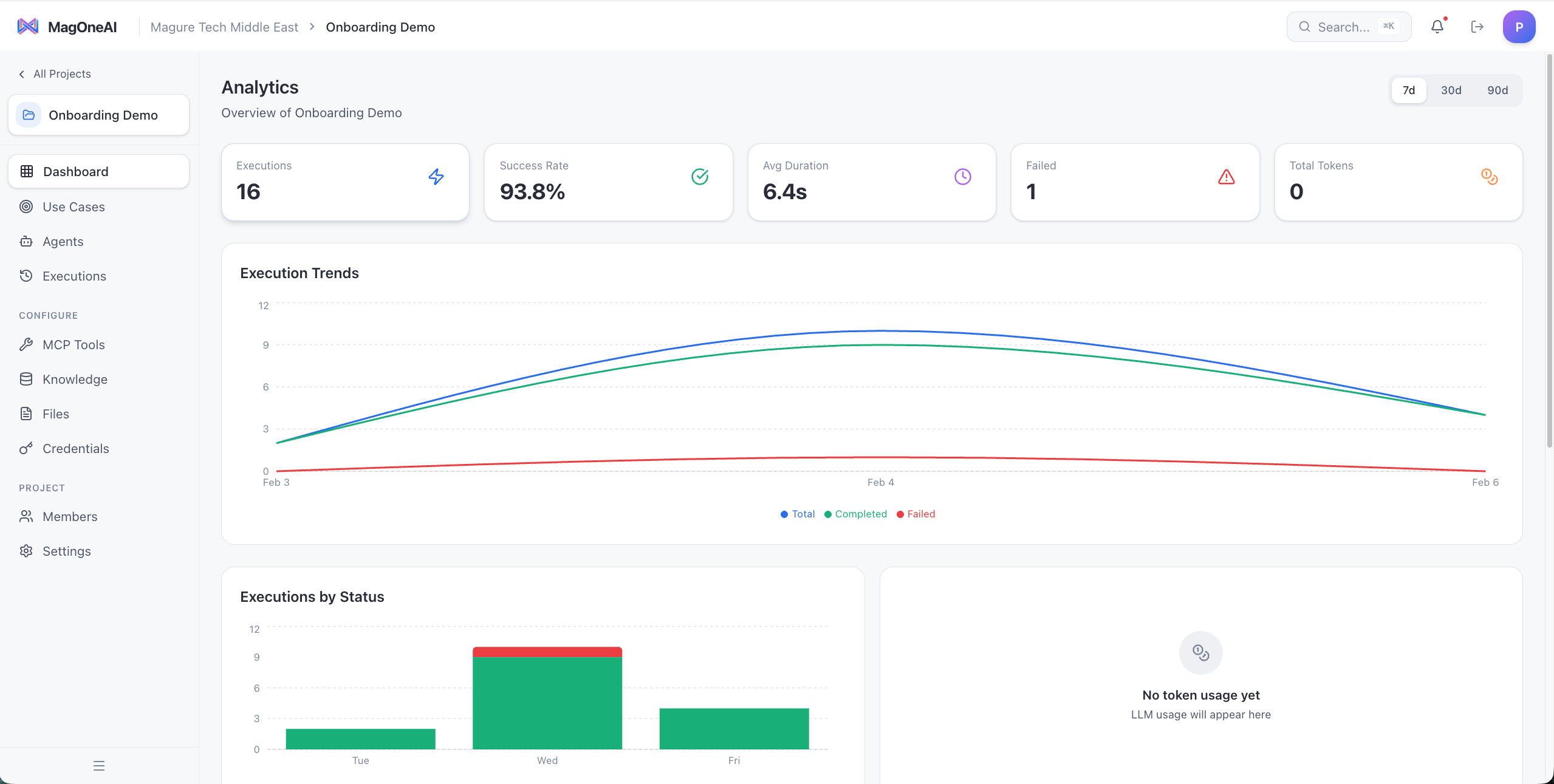
MagOneAI Studio includes a comprehensive analytics dashboard for monitoring workflow performance.
Execution metrics and trends
Track workflow usage over time:
- Total executions — How many times the workflow has run
- Success rate — Percentage of successful vs. failed executions
- Average duration — How long workflows typically take
- Execution trends — Graphs showing usage patterns over days, weeks, or months
Activity-level performance
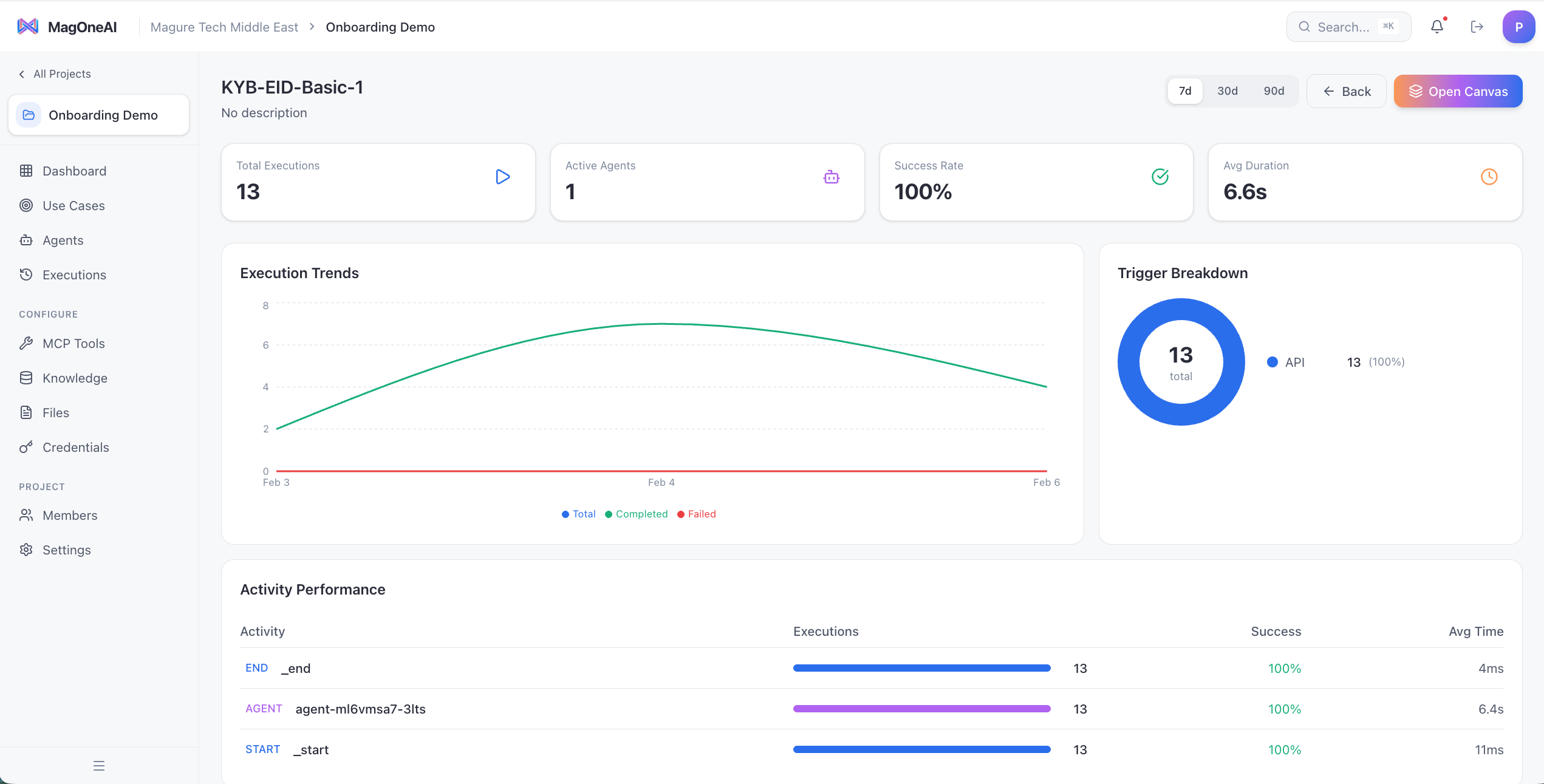
Drill down into individual activities:
- Activity execution counts — Which activities run most often
- Activity durations — Which activities are bottlenecks
- Agent performance — Track LLM token usage, tool call frequency, and response quality
- Error rates per activity — Identify problematic nodes
Cost tracking
Monitor LLM and execution costs:
- Token usage per agent — Track LLM API consumption
- Cost per execution — Estimate workflow operating costs
- Cost trends — Identify cost spikes or optimization opportunities
Use this data to optimize model selection and reduce operational expenses.
Best practices for building in MagOneAI Studio
Start small and iterate — Build a minimal workflow first (e.g., just one agent and one tool). Test it, refine it, then add complexity. This makes debugging much easier than building a large workflow from scratch.
Use descriptive names — Name your activities clearly (e.g., "Extract company info from website" instead of "Agent 1"). This makes workflows self-documenting and easier to understand months later.
Test with real data early — Don't wait until you've built the entire workflow to test with production-like data. Test each activity with realistic inputs to catch issues early.
Version control your workflows — Export workflow JSON to Git after significant changes. This gives you rollback capability and a change history.